

How to Manually Install SnapVideoTools Ext
Complete the steps in order. The quickest path is to enable Developer mode and drag the official ZIP directly onto the Chrome or Edge extensions page.
The Chrome Web Store is the recommended installation channel and provides automatic updates. Use this manual method only when you specifically need the verified ZIP package.
Install the Chrome extension from a ZIP file
Complete the steps in order. The quickest path is to enable Developer mode and drag the official ZIP directly onto the Chrome or Edge extensions page.
-
01
Download the official ZIP
Save snapvideotools-ext_full_v1.0.0.zip from this website. If you verify downloads locally, compare its SHA-256 with the value in the release card above.
Download version 1.0.0 -
02
Open the browser extensions page
Type chrome://extensions or edge://extensions directly into the browser address bar. You can also open the page from the browser menu by choosing Extensions and then Manage Extensions.
chrome://extensionsedge://extensionsKeep the ZIP file until installation is complete. You do not need to extract it for the recommended drag-and-drop method.
-
03
Turn on Developer mode
Enable Developer mode on the extensions page. This allows the browser to accept the official ZIP when you drop it onto the page.
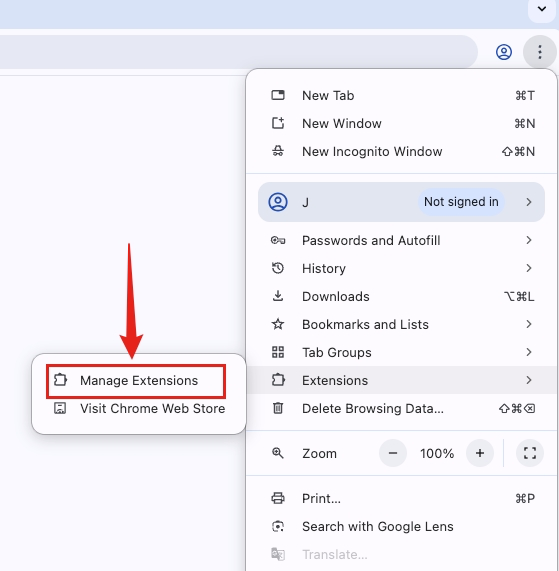
Open Manage Extensions from the browser menu, or enter the internal extensions address directly. 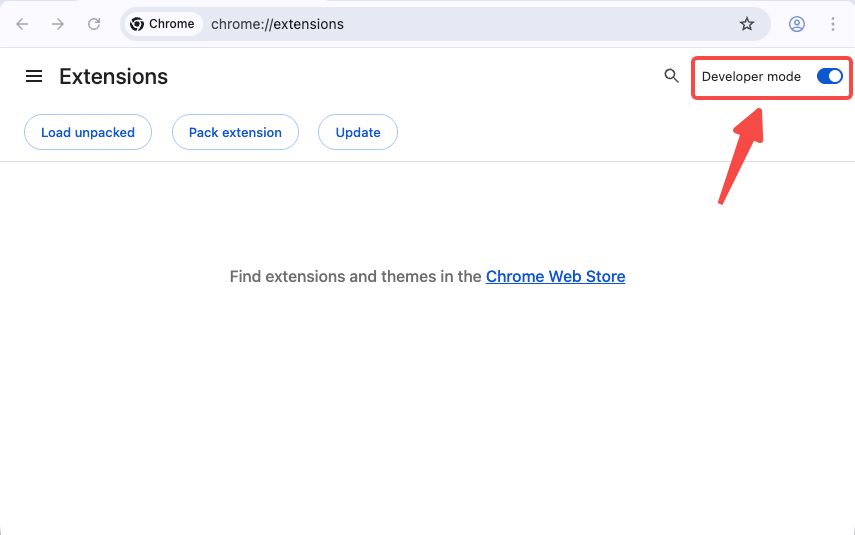
Developer mode reveals the Load unpacked control used for local folders. -
04
Drag the ZIP onto the extensions page
Drag snapvideotools-ext_full_v1.0.0.zip from your downloads folder and drop it onto the open extensions page. If your browser or device policy does not accept ZIP drop installation, extract the ZIP and use Load unpacked to select the folder containing manifest.json.
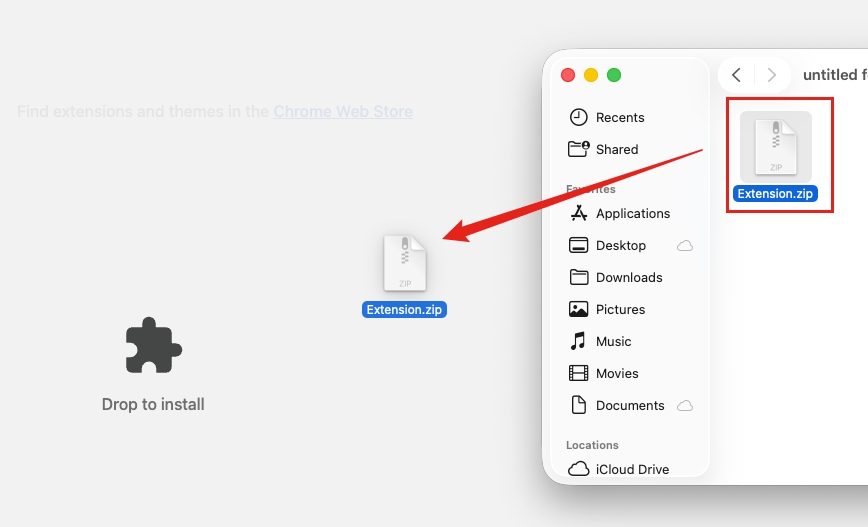
Drop the downloaded ZIP directly onto the extensions page for the quickest manual installation. -
05
Confirm the extension and pin it
After Chrome or Edge lists SnapVideoTools Ext, open the toolbar Extensions menu and select the pin control next to SnapVideoTools Ext for quick access.
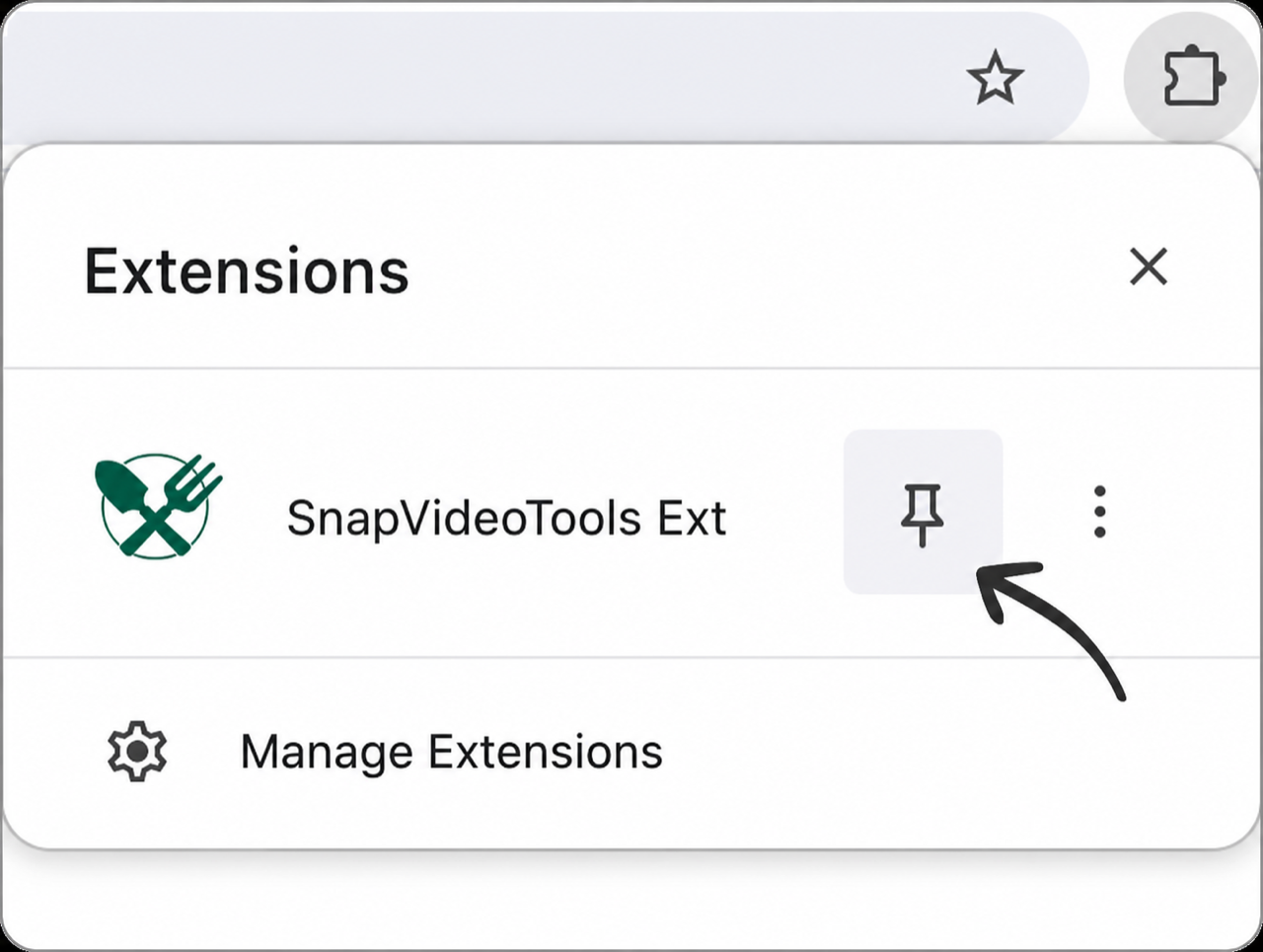
Pin the verified SnapVideoTools Ext entry if you want it to remain visible on the toolbar.


Chrome Web Store versus manual ZIP installation
The Chrome Web Store is the recommended installation channel and provides automatic updates. Use this manual method only when you specifically need the verified ZIP package.
| Difference | Chrome Web Store | Manual ZIP |
|---|---|---|
| Installation | One-click install from the verified listing | Enable Developer mode and drag the ZIP onto the extensions page |
| Updates | Handled automatically by the browser store | Download the newer ZIP and install it manually again |
| Recommended use | Preferred when the official listing is available | For a verified direct package when manual installation is specifically required |
Install each manual update from the new ZIP
Download the newer official ZIP, verify its version, and drag it onto the extensions page again. If you used the Load unpacked fallback, replace the files in the existing folder and select Reload on the SnapVideoTools Ext card.
Manual ZIP installations do not use store auto-updates. Check this site for a newer verified package. Only the unpacked-folder fallback requires you to keep that extracted directory in place.
Fix common manual installation errors
Start with direct ZIP drag-and-drop. If the browser does not accept the drop, check Developer mode and browser policy, then use the unpacked-folder fallback.
The browser says the manifest is missing or unreadable
Open the folder you selected. manifest.json must be directly inside it. If it is one level deeper, select that inner directory instead.
Dragging the ZIP does not start installation
Confirm that Developer mode is on and drop the ZIP onto an empty area of the extensions page. If the browser or device policy blocks this method, extract the ZIP and use Load unpacked to select the folder containing manifest.json.
Developer mode or Load unpacked is unavailable
A managed browser or enterprise policy may disable local extension loading. Contact the device administrator; this page cannot override browser policy.
A Developer mode warning appears
Browsers may remind you that a locally loaded extension is running. This is expected for unpacked extensions; keep only packages you obtained from the official SnapVideoTools download endpoint.
The extension disappeared after the folder moved
Return the directory to its previous location or use Load unpacked again to select its new permanent location.
The toolbar icon is not visible
Open the browser Extensions menu and choose the pin control next to SnapVideoTools Ext. The extension can remain installed even when its icon is not pinned.
Review the extension before you load it
Use the published checksum to verify the package, review the extension privacy policy for local storage and browser access details, and contact support if the file or manifest does not match this guide.
Manual installation FAQ
Direct answers about ZIP drag-and-drop, fallback installation, browsers, updates, and removal.
Is the direct ZIP an official SnapVideoTools release?
Yes. This page downloads the official SnapVideoTools Ext Full version 1.0.0 package from the SnapVideoTools OSS release address. The published size and SHA-256 let you verify the file.
Can I install the ZIP by dragging it onto chrome://extensions?
Yes. Enable Developer mode, then drag the official ZIP directly onto the open extensions page. If your browser or device policy does not accept the drop, extract it and use Load unpacked as a fallback.
Does a manually installed extension update automatically?
No. Download each newer official ZIP and install it manually again. If you used Load unpacked, replace the existing folder contents and select Reload. Store installations can update automatically.
Does this method work in Microsoft Edge?
Yes, for compatible Edge versions that allow Developer mode and local extensions. Open edge://extensions, enable Developer mode, and drag the ZIP onto the page; use Load unpacked only if needed.
How do I remove the manually installed extension?
Choose Remove on the SnapVideoTools Ext card in the browser extensions page. After removal, you may delete the downloaded ZIP and any fallback extracted folder you no longer need.